DeepBot
Where an app shows up
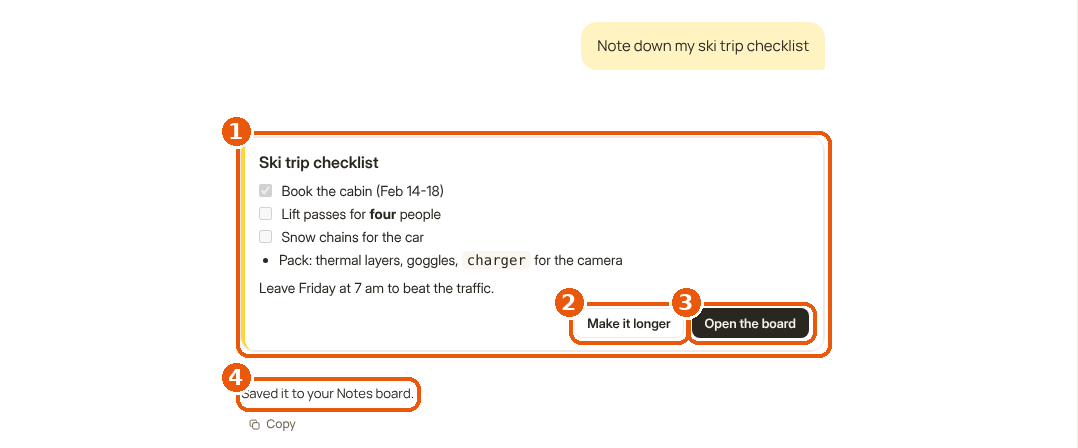
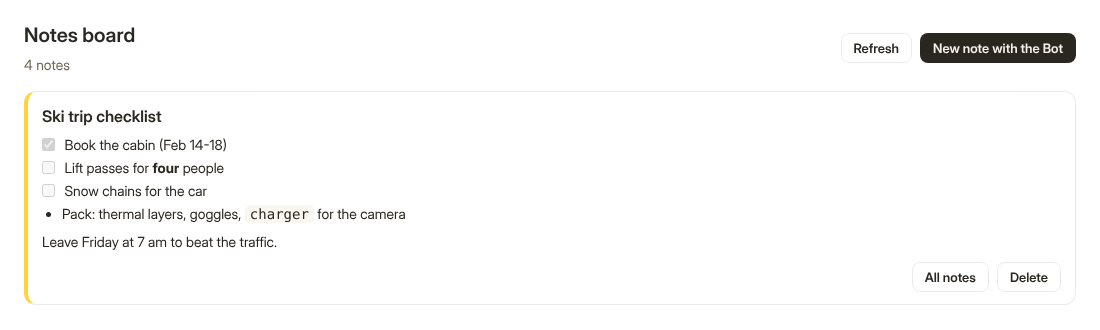
- The card: the app's
ui/card-note.html, shown because the Bot calledshowNote({ path }). - A button that calls
deepbot.ask(...): a message to the Bot in this conversation. - A button that calls
deepbot.openPage("board", { path }): the app's page, opened on this note. - The Bot's answer, written after the card reported
deepbot.done().
#Cards, in the conversation
The Bot calls a card like any tool (showRecipeBoxRecipe({ slug: "pancakes" })). DeepBot puts the
card's entry page in the conversation, in a frame as wide as the conversation column, and gives
it the call's arguments.
How a card lives:
- The Bot starts the call. While it is still streaming the arguments, the frame may already be on
screen: listen to
deepbot.on("args", ...)and re-render. await deepbot.readygives the final arguments indeepbot.args.- The card reads what it needs (usually a file the Bot just wrote), draws, and calls
deepbot.done(note)ordeepbot.fail(message). - The Bot hears the result (the card's
confirmationplus your note, or the failure) and answers.
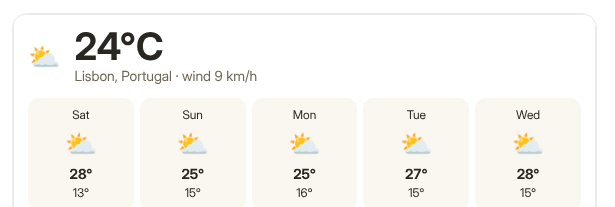
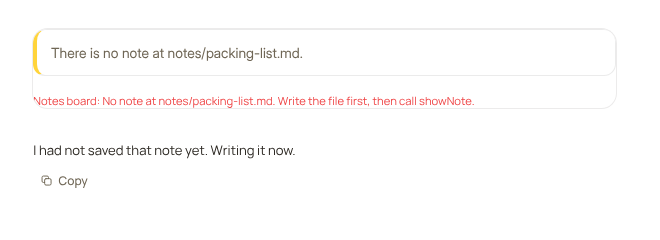
When a card cannot do its job it says so on screen and tells the Bot with deepbot.fail; DeepBot
also shows the failure under the card, and the Bot fixes the cause and tries again:
Sizing: the card starts at height and then follows its content: DeepBot measures <body> and
resizes the frame (60 to 4000 px). Do not use height: 100vh in a card; let the content decide.
Avoid layouts that jump in height while loading (reserve space for images).
Full screen: by default DeepBot draws a full-screen button on the card's top right corner. With
"fullscreen": "app" you draw your own (in your header) and call deepbot.fullscreen(). When a
card is full screen, <html> has class full and you get deepbot.on("display", ({ full }) => ...):
use it to show more (a bigger stage, the editing tools).
A card is the place for: the result of what the person asked, a choice (buttons that ask the
Bot), a preview with "Open in openPage). Keep it focused; long work goes to a page.
#Pages, in DeepBot
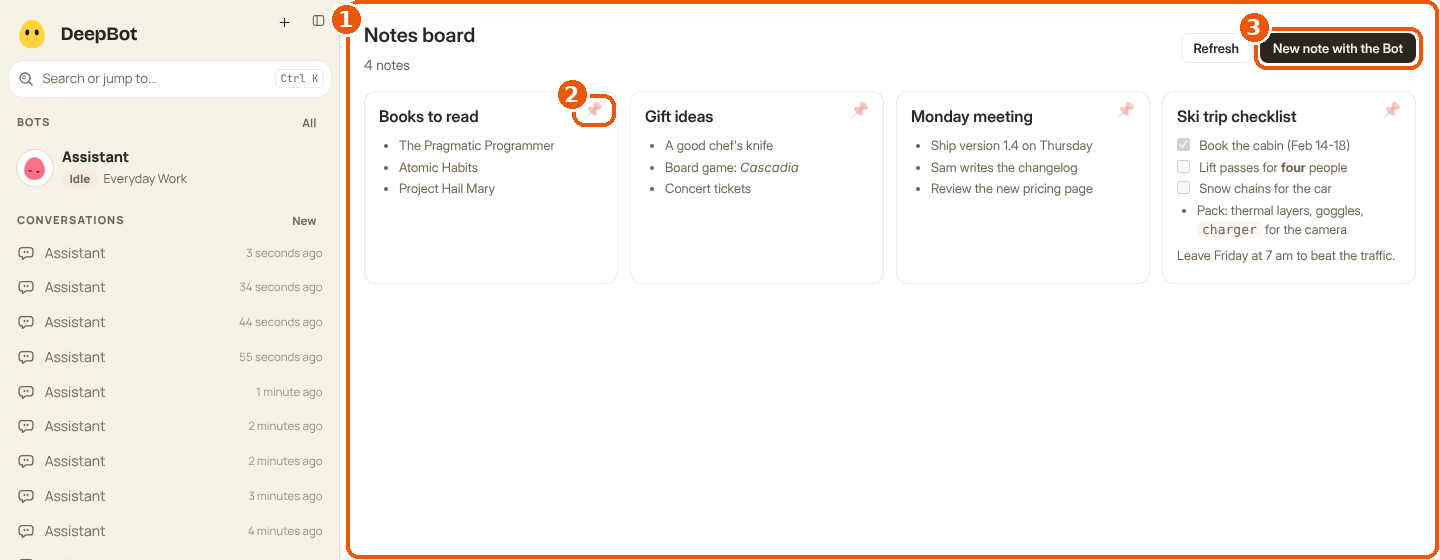
- The page: the app's
ui/board.html, filling DeepBot's main area. - Pins, kept per person with
deepbot.storage. - "New note with the Bot":
deepbot.ask(...)from a page starts a new conversation. - Apps, in DeepBot's bar: where the person finds every app and its pages.
A page fills DeepBot's main area (everything right of the sidebar). The person reaches it:
- on the Apps page: each page is a button on the app's row;
- from a card:
deepbot.openPage("box", { slug: "pancakes" })opens it withdeepbot.args; - by its address:
/apps/<app id>/<page id>.

- Each page of the app is a button on its row.
Pages are for the things a person comes back to: a library of everything the app made, an
editor, settings (keys via deepbot.secrets), progress of long jobs. Use class="db-page" on
<body> for DeepBot's padding and background, or lay it out yourself (full-bleed editors).
A page's deepbot.args are the params it was opened with ({} when opened from the Apps page).
The page reloads when opened with different params.
#The skill, invisible but essential
The Bot only uses the app because the app's skill tells it when and how (app-skill.md). DeepBot adds it to every Bot that may use apps and keeps it in sync with the file.
#Apps page and the catalogue
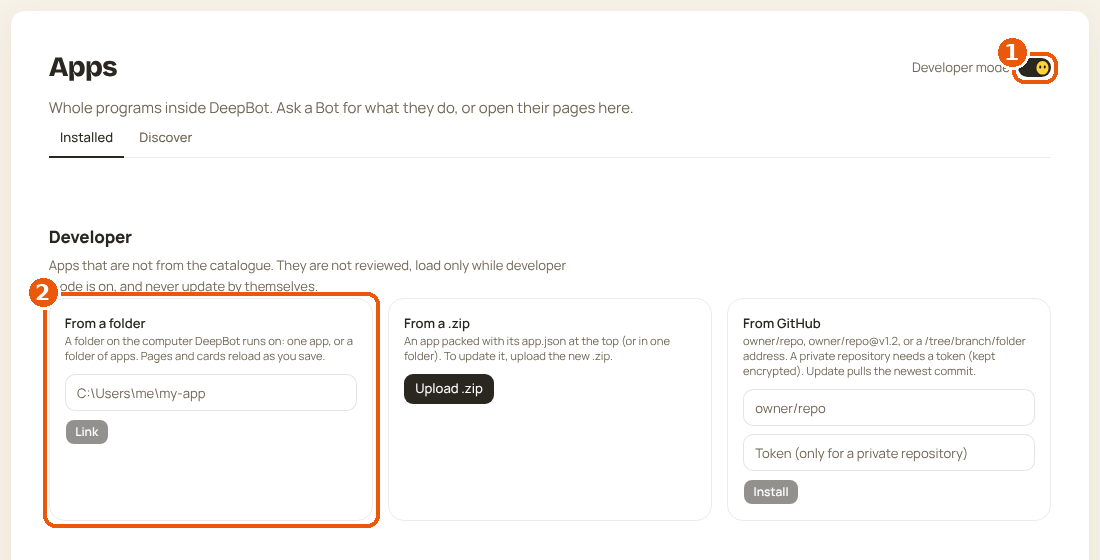
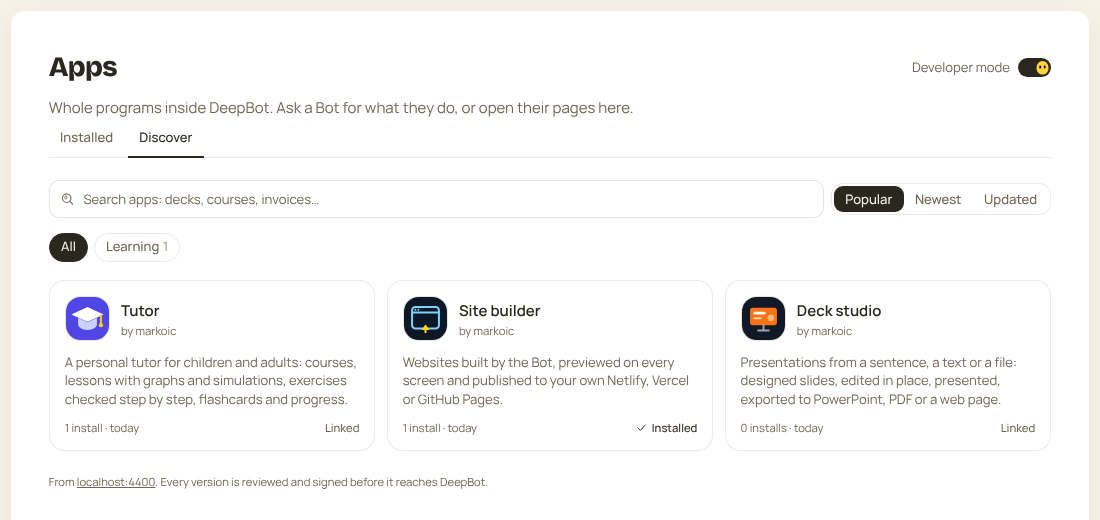
- The Developer mode switch.
- Link a folder: the app loads from it and reloads as you save.
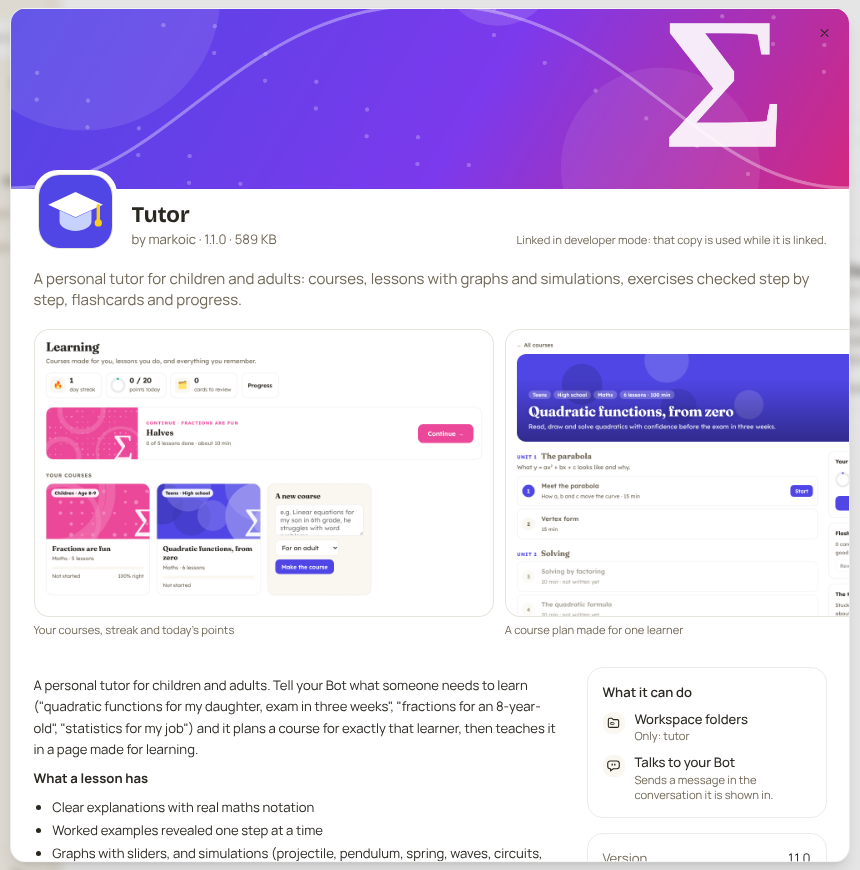
The Apps page lists installed apps (activate, deactivate, delete, their pages) and, with Developer mode on, lets you link a folder (live reload), upload a .zip, or install from a GitHub repository. Discover searches the catalogue.